 Clayground
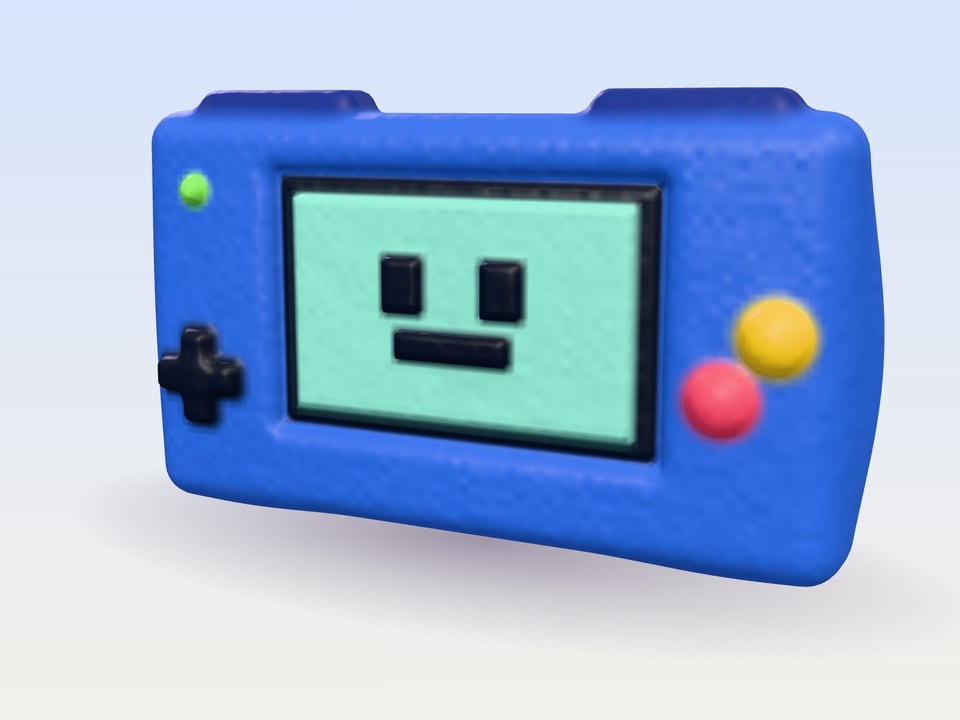
A first 3D printing project in middle school can start from a sculpt. Students make a character, an animal or an object in a free browser studio, export a print-ready STL file, and you print it on the school printer. Clayground's Print (STL) export is 60 mm tall and stands upright with its feet on the print bed, and a print takes about 30 to 90 minutes on a school printer. No student accounts are needed.
How the project runs
- Sculpt. Students run one of the six lessons in a class period. Each ends with a picture, and Print (STL) is in the same Export menu.
- Choose what to print. A class of 30 at 30 to 90 minutes each is 15 to 45 hours of printing on one printer. Print a few: one for each group, or the ones the class picks from the class shelf.
- Export. In the studio, press Export, then Print (STL). The file is 60 mm tall, standing upright with its feet on the print bed. Students send it the way they send any file.
- Check and print. Open it in the slicer. Cura, PrusaSlicer and Bambu Studio all read STL. Scale it there if you want a bigger or smaller print, then slice and print.
- Finish. Prime the print and paint it with acrylics, using the sculpt's picture as the reference.
Which lesson prints best
Chunky shapes print best, and thin parts can snap. The favorite food and tech gadget lessons make chunky shapes. The animal and monster lessons make legs, tails, ears and horns that may need thickening first, with Clay or Inflate. The print guide has more on supports and thin parts.
Check the file first
- The STL volume calculator shows a file's size, volume, weight, filament length and cost, and whether the surface is closed. It runs in the browser and nothing is uploaded.
- The STL scaler resizes a file to a percentage or an exact length in millimeters.
- Each part of a sculpt is its own layer, so the file can have overlapping shells. Slicers usually handle that. If yours warns, use its repair or merge option.
Color
A plain Print (STL) is one color. On a printer that swaps filaments, a sculpt with several layers can export a zip with one STL per layer, lined up, with each layer's color in its file name. Open them all in the slicer and give each part its own filament. On a one-color printer, print it and paint it.
No printer at school
Many public libraries and makerspaces have one students can use, and online services like Craftcloud compare prices from print shops. Upload the STL and pick a material. Printing costs whatever the printer or service charges. The studio and the STL export are free.
What is not known yet
The lessons have not been tested for learning outcomes, and the print times are a range, not a measurement from your printer. Print one before you promise a class set.
Questions people ask
How long does a student's print take?
About 30 to 90 minutes on a school printer for a 60 mm sculpt. Scale it down in the slicer to print faster.
Do I need a 3D printer?
To print at school, yes. Without one, a library, a makerspace or an online print service can print the STL files.
What file do students hand in?
An STL from Print (STL). They can also hand in a picture or a project file, the way they hand in any file.
Can students print in color?
A sculpt with several colored layers exports a zip with one STL per layer, for a printer that swaps filaments. On one color, print it and paint it.
Do students need accounts?
No. Sculpting and exporting need no account, email address or date of birth.
Sources
Checked November 14, 2026.